Turn a recorded interview, lesson, or spoken draft into text. Upload audio, choose your transcription settings, and review the words before copying or downloading your transcript.
TEXT TO SPEECHSPEECH TO TEXT
Transcribe your recording and reuse the words.
An audio-to-text workspace
Turn a recording into words you can work with. Grok Voice 2.0 keeps your workspace focused on speech to text, from your first upload to a reviewed transcript.
01
Start with audio
Upload an existing recording or add a direct audio URL. Choose the language and settings for your source.
02
Review the words
Listen alongside the returned transcript. Check names, numbers, and punctuation before copying or downloading the text.
03
Make it your next draft
Edit the transcript in your writing tool, or use the text-to-speech workspace to create narration from your reviewed script. Each generation has its own usage.
Hear the input. Read the actual output.
Four short English examples, generated with Eve and transcribed through this site. Play each recording and compare it with the unedited result below.
Workshop announcement
15s · English
Listen to the source0:00 / 0:14
Returned transcript
Join our October 21st workshop at 9:30 in the morning. For $19.50, learn three ways to turn a rough draft into a clear voiceover, then export an MP3 file. Send it to your team before five in the afternoon.
Team reminder
10s · English
Listen to the source0:00 / 0:09
Returned transcript
A quick reminder for our team: please send your project notes by Thursday afternoon. We will review the first draft on Friday at 10, then choose the next steps together.
Course instruction
11s · English
Listen to the source0:00 / 0:10
Returned transcript
Before you begin the lesson, open a blank document and write one clear goal. Read your first sentence aloud, pause, and check whether it explains the idea without extra words.
Travel announcement
10s · English
Listen to the source0:00 / 0:09
Returned transcript
Your train to Brighton leaves from platform six at fourteen twenty. Please keep your ticket ready and take all your belongings with you. The next stop is East Croydon.
Recorded October 16–20, 2026. These are synthetic speech-to-text examples, not real interview recordings. For a detailed script revision, see the same-voice comparison.
Choose settings for your recording
Controls available in this transcription tool
Setting
When to use it
What to check afterward
File or audio URL
Upload a local recording, or provide a direct public audio-file URL.
A page containing a player is not necessarily a direct audio file. Check that the service can access the recording.
Language
Choose the spoken language when known, or use Auto detect.
Check names and any sections that change language. Selecting a language does not translate the recording.
Formatted output
Choose a language, then enable the option when preparing a transcript for reading.
Review punctuation, paragraph boundaries, dates, amounts, and abbreviations.
Speaker labels
Request speaker separation for a recording containing multiple voices.
Listen at each change of speaker. A label is not a verified person’s identity.
Filler words
Choose the option according to how much spoken detail your transcript needs.
Compare the output with the recording before using it as a verbatim quotation.
Keyword hints
Provide relevant names or specialized terms, up to 100 hints.
Hints guide the task; they do not guarantee a particular spelling or justify inserting words that were not spoken.
The upload limit is 500 MiB per file. A file being selectable does not guarantee that every encoding inside it can be decoded. If an upload fails, try a standard audio export and a short sample before repeating a large task. Keep the original recording so you can compare the result without relying on memory.
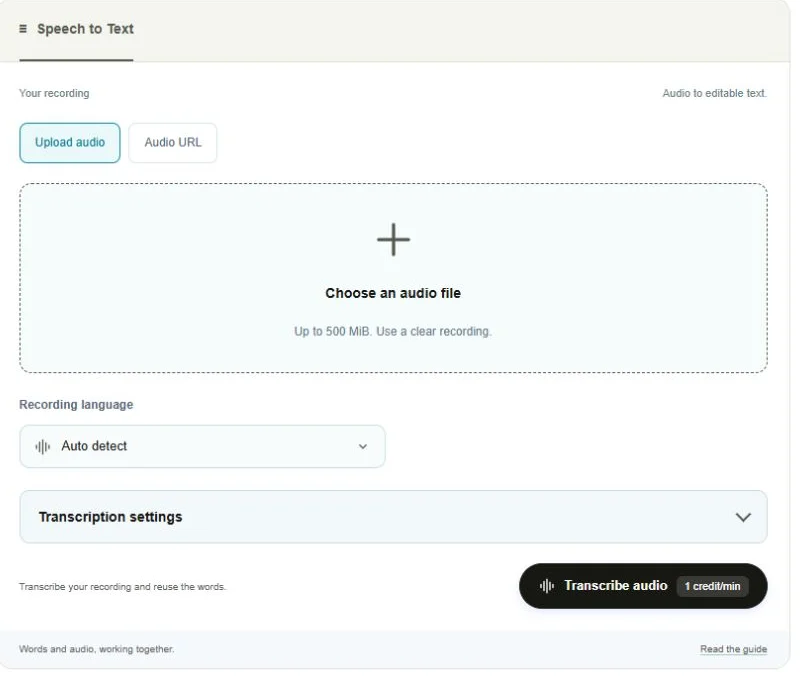
Your audio-to-text workspace, explained
Actual interface · October 20, 2026
Upload your recording
Choose an audio file or paste a direct audio URL. Check recording privacy before uploading personal material.
Choose the language
Select the spoken language, or leave Auto detect on. This setting helps transcription; it does not translate the recording.
Fine-tune the transcript
Open Transcription settings for speaker labels, formatting, filler words, and keyword hints.
Start transcription
Review the estimated credits, sign in, and submit once. Follow the task status while your audio is processed.
Then listen, correct, and export.
Check names, numbers, and speaker changes against the audio. Copy or download your transcript and edit it in your writing tool. For help, follow the usage guide and troubleshooting steps.
Decide what the finished text is for
INTERVIEW AUDIO↓
Speaker 01Verified quotation
Interview notes and quotations
Use a transcript to find topics and draft an outline. Before publishing a quotation, replay its surrounding sentences and confirm who said it. Overlapping speech can make speaker boundaries ambiguous. Do not convert an uncertain label into a person’s name without checking the recording.
RECORDED LESSON↓
Study notes01 02 03
Lessons and spoken explanations
Turn an explanation into a readable draft, then add headings and clarify references such as “this diagram.” The transcript only has the spoken information; it cannot recover a demonstration that was visible but never described. Review technical vocabulary and units before giving the text to learners.
SPOKEN IDEA↓
Edited scriptReady for voiceover →
A spoken draft for a new voiceover
Record the idea, transcribe it, and cut repetition before creating narration. Writing for a listener often requires shorter sentences than a raw spoken draft contains. Use the reviewed text as a new script rather than expecting transcription to make those editorial decisions automatically.
Plan for the first pass and any repeat tasks
Recording length
10 minutes
First transcription
10 credits estimated
One full repeat
+10 credits estimated
The current planning rate is 1 credit per minute of audio. A 10-minute recording therefore has a base estimate of 10 credits; submitting the full recording again adds another estimated 10. Minimum charges and billing rounding can affect the final usage, which is confirmed by the service.
Editing a downloaded transcript in your own text editor does not submit another transcription request. Sending that edited text through Text to Speech creates a different, character-based task. Use the credit calculator and package comparison to budget for both steps instead of treating transcription minutes as narration characters.
Questions before you transcribe
Does Grok Voice 2.0 generate speech on this page?+
This page is dedicated to transcription with Grok Voice Transcribe 2.0. Use the main voice generator for text-to-speech tasks. The version name here describes the transcription model, not a separate text-to-speech model selection.
Can I use a link instead of uploading a file?+
Yes, choose the audio URL input and provide a direct, publicly accessible audio-file URL. A private cloud link, expiring link, or website page may not be readable by the processing service.
Will speaker labels identify the people in my recording?+
No identity verification is provided. Treat labels as suggested speaker groupings and check them by listening. Assign real names only when you can verify the voices yourself.
Do these examples prove accuracy for interviews?+
No. These short synthetic recordings each use a single voice. They do not test background noise, simultaneous speakers, accents across a broad dataset, or real interview conditions. Test a representative permitted excerpt for your project.
What should I review before sharing a transcript?+
Check names, numbers, omitted words, speaker changes, punctuation, and private information. Keep the distinction between an exact quotation and an edited summary clear. For consequential use, have a qualified person review the result against the audio.
Start with one recording
Review the result before committing to a larger project.